
Menu & Items
Items: You can have as many items as you need
Adding a new item:
- New Back Office: Tools->Back Office->Menu->Items->New Item
- Advanced Back Office: Tools->Back Office->Advanced->Menu->Choose Category->Add Item
- Live Edit: Click on an empty space in the menu and add new item
Online Update: Press when you have finished making any changes to the Menu and you want to update the Online Ordering Website
- If the Online box is checked on the Item, it will show Online
- If the Online box is unchecked on the Item, it will not show Online
Shifting Item Order:
Advanced Back Office: Tools->Back Office->Advanced->Menu->Category->Item->Select Item and use arrows to move position
Live Edit: Click on an empty space in the menu and drag the Item
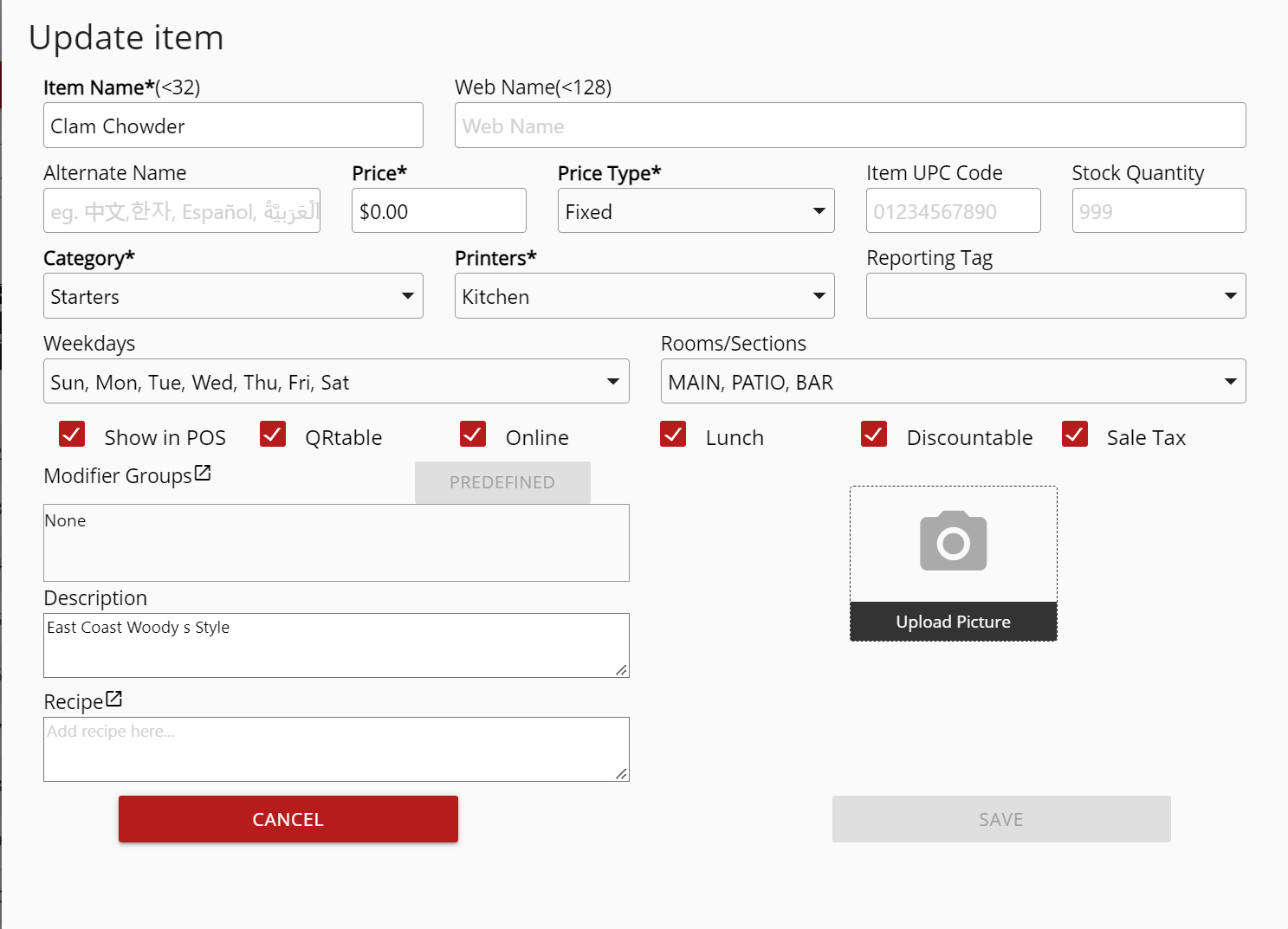
Item Information:
Item Name: Name of the Item
Alternate Name: If you change the language, enter the Item Name in the desired language
Price: Price of the Item
Price Type: Type of unit the price uses
- Fixed
- Per Oz
- Per Lb
- Per Kg
- Per Hour
- Per Min
- Variable
- Ask
Item UPC Code: Barcode or UPC Code of the Item
Stock Quantity: Quantity amount of the Item
Category: Category the Item is under
Printers: Printers that will print this Item
Weekdays: Days of the Week the Item will be available
Rooms/Sections: Rooms/Sections the Item will be available
Modifier Groups: Modifiers that are linked to the Item
Description: Description of the Item. Will show on the online ordering website
Upload Picture: Choose to upload a picture for the Ite
If you need further assistance, please contact our support team:
Support Available in English & Spanish
Tel: 800-211-1256, option 1
Email: support@chargeanywhere.com
Hours: 9:00AM-9.00 PM EST Monday-Saturday,
9am to 6pm EST, Sunday