
Combining Tickets
Combining Tickets:
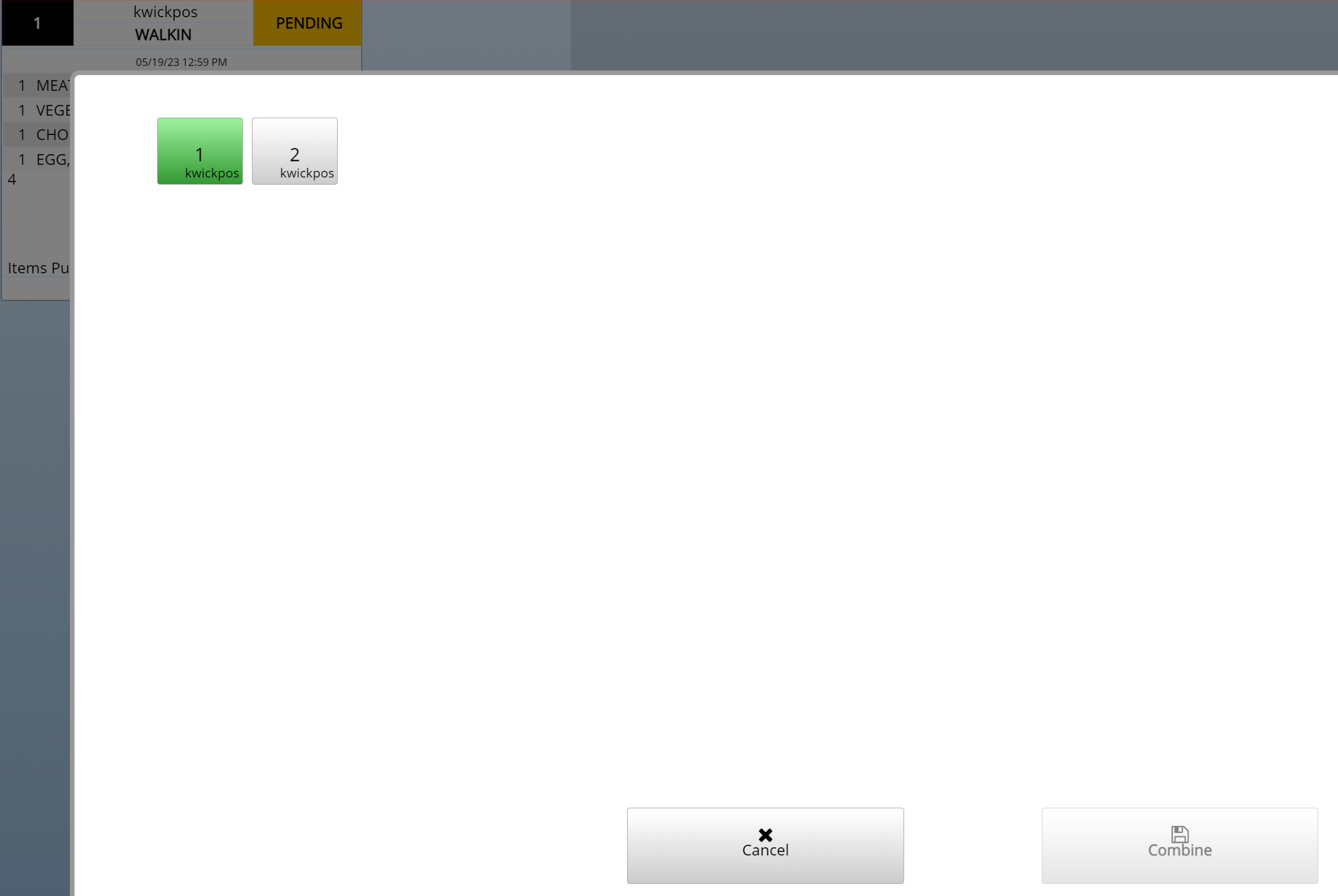
If you would like to combine different tickets together, you can combine them
Go to Orders->Select Order->Combine->Select order to combine with ->Combine
Combine Table:
Tools->Back Office->Advanced->System->General->Combine Table
Yes: Enabled the Table Combine button after clicking on an open order and then clicking Table Change
No: Disables Table Combine
Permanent Combine:
Tools->Back Office->Advanced->System->General->Permanent Combine
Yes: Multiple tickets are permanently combine into one, the original ticket disappears
No: Commission split; Click Combine, then click Combine Pay (tips for separate users are preserved)
If you need further assistance, please contact our support team:
Support Available in English & Spanish
Tel: 800-211-1256, option 1
Email: support@chargeanywhere.com
Hours: 9:00AM-9.00 PM EST Monday-Saturday,
9am to 6pm EST, Sunday